Arrange Assistant
Configuring Your Table Grid
CoreSpade calculates and generates your table layout automatically based on the parameters you define in the Layout Settings.
- Layout Management: You can create, save, and manage multiple layout profiles and switch between them at any time.
- Monitor Parameters: Configure each monitor individually by setting the total number of table slots, the alignment (Left, Center, Right), and the fill direction (Horizontal or Vertical).
- Advanced Tuning: Further refine your grid using parameters such as display priority (determining which monitor fills first), maximum allowed overlap, taskbar avoidance, and uniform sizing (which forces identically sized slots across all active displays).
Special Window Slots
Assign reserved slots for auxiliary windows to keep them separate from your active tables.
- Dedicated Slots: Configure fixed positions for Replayers, Hand History (HH) Viewers, MTT Lobbies, and Note Windows. When you open these windows, they are automatically snapped into their designated slots.
- Client Lobby Slot: Group and stack all poker client lobbies into a single, unified window position. This feature includes an interactive tab-bar for quick switching between lobbies, which can be docked to the slot or dragged freely across the screen.
Using Stacked Layouts
A stacked layout assigns multiple tables to the exact same slot position, grouping them together to save screen space.
- Setup: You can define specific slots in your grid to act as "Stacked" slots within the Layout Settings.
- Table Activation: CoreSpade continuously monitors the game states. When it is your turn to act, the software brings the active table to the foreground.
- Mixed stacks: Poker clients bring their own tables forward by themselves. GGPoker does this even with CoreSpade closed. If tables from several networks share one slot, the wrong table can end up on top, and a left click brings the right one back. A slot holding tables from a single network is unaffected. Popups can have the same effect: bounty payouts, tournament notifications and prize awards all reorder windows.
- Hybrid Configurations: Mix different layout types by combining single-table tiled slots and multi-table stacked slots on the same monitor to create a hybrid grid.
Rearranging Tables During Play
You can dynamically move tables to different slots while playing without disrupting your layout.
- Drag & Drop: Click and hold the left mouse button on a table to drag it into a new slot.
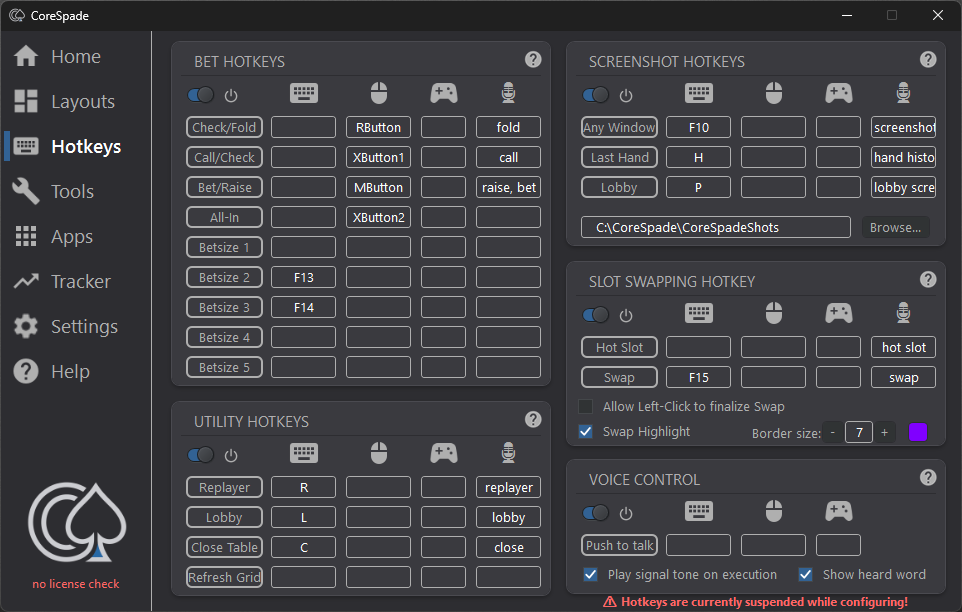
- Hotkey Swapping: Press your designated swap hotkey to select a table. Then, move your mouse over the target slot and either press the hotkey again or left-click to finalize the swap.
- Visual Indication: In the Settings, you can enable a customizable colored border that highlights the currently selected table while a swap is in progress.
Hotkey Assistant
Configuring Action Hotkeys
Map in-game actions to physical inputs for faster decision execution.
- Supported Actions: Assign hotkeys to standard poker actions such as Check/Fold, Bet/Raise, All-In, and specific bet-sizing buttons.
- Input Devices: CoreSpade supports key mapping across all standard input devices, allowing you to use your keyboard, mouse buttons, or a controller.
Configuring Utility Hotkeys
Map recurring window management actions to hotkeys to streamline your workflow.
- Window Functions: Assign hotkeys to instantly open a table's Replayer, open a Tournament Lobby, or safely close the active table.
Automated Screenshots
Use automated screenshot sequences to capture game information without manual window management.
- Hand History Capture: Pressing the hotkey automatically opens the Hand History Viewer in an enlarged state, takes a screenshot of the hand, and immediately closes the window.
- Lobby Capture: Similar to the HH capture, this hotkey opens the MTT Lobby, navigates to the necessary tab (like payout structures), captures a screenshot, and closes the lobby.
- Standard Captures: The same hotkey system can be mapped to take standard screenshots of the active table or screen.
Advanced Swapping Hotkeys
Map specific swapping commands to keyboard inputs for faster table organization.
- Hot Slot Target: Define a specific "Hot Slot" and use a hotkey to instantly pull any active table from a stack into this designated slot.
- Direct Swap: Initiate table swaps between slots using keyboard hotkeys instead of mouse drag & drop.
Voice Control
Say a word and CoreSpade presses the hotkey for you. Fold, call, raise, open the lobby or the replayer, all without touching the keyboard.
- Runs on your PC: CoreSpade uses the speech recognition built into Windows. Nothing is uploaded and nothing extra needs to be installed. Windows needs the English (United States) speech pack; if it is missing, add it under Settings, Time & language, Language.
- Turning it on: Open the Hotkeys tab and flip the switch in the Voice Control box. The group switch of the action has to be on as well, for example Bet Hotkeys for fold and call.
- Choosing words: Every hotkey row has a microphone column. The word in it triggers the row. English poker terms are filled in already: fold, call, raise, all in, size one to size five, replayer, lobby and so on. Change any word you like, and separate several words with a comma, such as "raise, bet". Leave the field empty and the row ignores your voice.
- Using it: Point the mouse at the table and say the word, short and on its own. Like a hotkey, the command goes to the table under the mouse.
- Push to talk: Assign a key, a mouse button or a controller button in the Push to talk row and CoreSpade listens only while you hold it. Without one it listens all the time. Use push to talk once real money is on the table, so that a conversation in the room cannot trigger an action.
- Feedback: Play signal tone on execution gives a short beep when a command went through. Show heard word briefly displays the recognised word in the top left corner of the screen, handy while setting things up.
- Good to know: On PokerStars the row also needs a key, because the client only reacts to its own shortcuts. If a word is often missed, speak more clearly, move closer to the microphone or pick a different word.
Tools
Highlight Assistant Configuration
Use visual indicators to quickly identify which tables require action.
- Active Table Border: Draw a customizable colored border around the table that currently requires your action. Border thickness and color are configured in the settings.
- Mouse Hover Border: Draw a border around the table currently located under your mouse cursor to ensure you are interacting with the correct window.
- Sitout: Marks a table you are sitting out on, in its own colour. Useful when you are registered at more tables than you are actively playing.
- Busted: Marks a table you have been knocked out of, so it is obvious at a glance which windows you can close.
- Reverse Highlight: Instead of highlighting the active table, this feature dims all inactive tables. You can adjust the opacity level of the dimming effect to suit your preference.
- Blink Frame: Makes the action border flash instead of standing still, with three speeds to choose from. Only the action border blinks, never the other frames.
Setting Up the RNG Assistant
Configure a centralized Random Number Generator (RNG) panel for randomized decision making.
- Panel Design: The RNG is a separate window. Numbers are never drawn into the table image, and nothing is written into the poker client - the panel does not touch it at all.
- Generation Triggers: You can configure the RNG to generate a new number manually upon a mouse click, automatically at a set time interval (e.g., every 5 seconds), or use both methods simultaneously.
Activating Tables on Hover
Configure CoreSpade to automatically bring tables to the foreground based on mouse position.
- Focus Mechanics: When enabled, simply moving your mouse cursor over a table will activate it and bring it to the front of your screen.
- Overlap Handling: This feature is specifically designed for overlapping or heavily stacked layouts: hotkeys go to the specific table located beneath your cursor rather than to whichever window happens to be active.
The Table Counter Bar
A small always-on-top bar that tells you what your tables are doing without looking at them. Switch it on with Show counter bar in the Tools tab.
- What it counts: how many tables are open, and how many currently need your action. Tables that are sitting out or busted are shown dimmed, so they do not inflate the number you actually have to play.
- Where it sits: drag it anywhere you like. Its position is remembered between sessions.
- Dock to first stack table slot: if your layout uses a stack slot, the bar can attach itself to it instead of floating free.
Final Table Song
Set one track to play when you reach a final table. It sits on the Home tab and says No Song Set until you give it a link.
- Setting it: paste a Spotify or YouTube link. CoreSpade fetches the title and cover art so you can see what you picked.
- Playing it: the track is started in the player it belongs to. CoreSpade does not stream anything itself and stores no audio.
- Coming back: when the song ends, whatever you were listening to before is resumed.
This one is pure ceremony. It changes nothing about how you play.
Apps
Safety Assistant Protection
Closes tools that are permitted on their own, but must not be open while you are in a session. The list is CoreSpade's, not a poker room's - you decide what it contains.
- Process Monitoring: CoreSpade continuously scans running processes to detect active poker clients.
- Automatic Termination: When a poker client starts, listed programs (e.g. Equilab, Flopzilla, PioSolver) are terminated. This is a hard process kill - unsaved work in those programs is lost. Close what you need to keep before starting a session, or take the entry off the list.
Show the default list
These tools are legitimate study software. They appear here because most poker rooms do not allow them open during a live session - not because the tools themselves are forbidden. CoreSpade closes them while a client runs:
Solvers & GTO Tools
- PioSolver / PioViewer
- GTO+ / GTO plus
- GTOBase
- DeepSolver
- MonkerSolver
- Simple Solver Suite
- Odin
- DTO Poker
Calculators & Equity Tools
- Holdem Resources Calculator (HRC)
- ICMIZER
- PokerStrategy Equilab (Standard / Omaha / Power)
- Flopzilla / Flopzilla Pro / Classic
- CardLab / holdeq
- PokerStove
- PokerCruncher
Trainers & Analysis
- PokerSnowie
- Range Converter
- Range Explorer
- Range Trainer Pro
- Simple GTO Trainer
- Preflop Advisor
- EZAnalyzer
- PokerRanger
Want to suggest another poker tool to be added to the safety list? Let me know!
Configuring the Autostart Assistant
Create a macro to launch your entire workspace environment simultaneously.
- Program Paths: Add the executable paths for your poker clients, tracking software, and other utilities to the Autostart list.
- Launch Sequence: You can configure custom time delays between the start of each program to ensure heavier applications have fully loaded before the next one launches.
Core Tracker
What the Tracker Reads, and What It Does Not
The Core Tracker is a results overview for your own tournaments. It is closer to a spreadsheet than to a database tool, and it is deliberately narrow in what it touches. It is marked EXPERIMENTAL in the interface: it is not essential to CoreSpade and may be removed in a future version.
- GGPoker only, for now: The tracker currently reads GGPoker tournament summaries and no other format. Files from other networks are ignored, not misread. Support for further networks may follow.
- Source: It reads tournament summary files that already exist on your disk. It does not connect to any poker room, and it does not read anything from a running client.
- Hand histories are skipped: Files containing hand histories are identified by their first line and are never parsed. The tracker does not build a hand database.
- What it stores per tournament: buy-in, rake, bounty, re-entries, field size, prize pool, and your own finishing position and winnings.
- What it never stores: no player names, no hands, and no statistics about anyone other than you. There is no opponent data of any kind.
- Nothing appears during play: the tracker displays nothing while tables are open. It is something you look at afterwards, not a live overlay or HUD.
This scope is not an accident. Most poker rooms prohibit HUDs, opponent analysis and mass data analysis, and CoreSpade is designed to stay clearly outside those categories. The same description is given to every poker room we have contacted. See the Compliance page.
Importing Tournament Results
Results are imported from a folder you choose. Nothing is imported automatically and nothing is sent anywhere. The database stays on your machine.
- Import Tourney Results: Select the folder containing your tournament summary files, and CoreSpade will search it and its subfolders. GGPoker does not write these files itself. You download them from PokerCraft, so point the import at wherever you saved them.
- Repeated imports are safe: A tournament that is already recorded is updated rather than added again, so you can point the import at the same folder as often as you like without inflating your figures.
- Overview: The Tracker tab summarises the imported tournaments as Profit, ROI, ITM and average buy-in, with the individual results listed below.
- Bounty tournaments and ITM: Progressive bounty formats do not state how a payout splits between prize money and bounties, so a cash-out cannot be read as "in the money" with any certainty. These tournaments are therefore left undetermined and are excluded from the ITM figure rather than guessed at. Your ITM rate refers to non-bounty tournaments only.